

On this page
Set up your member account – first time
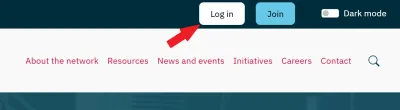
- Click on the Log in button.
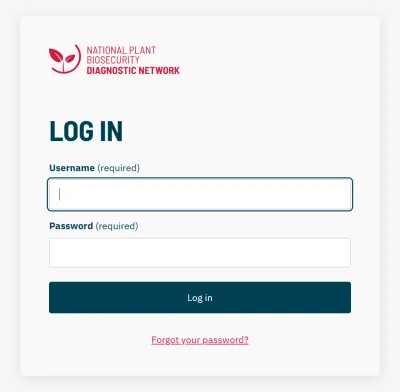
- Click “Forgot your password?”
- Enter your username (usually in the format of firstname.lastname all lowercase) or email address and click Submit.
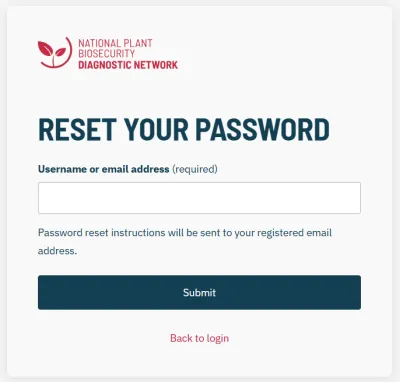
- Follow the instructions in the email to reset your password. If you are unable to provide the correct email or username, please Contact Us for further assistance.
Update your member details
- Click on the Log in button.
- Enter your username and password (take care with capitals and avoid additional spaces). Note, your username is NOT your email address. It is usually firstname.lastname and will be specified in your password reset email.
- Once logged in, click on “My account”
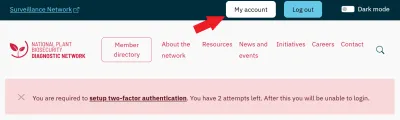
- Click “Edit” and proceed through the fields to edit your details. Once finished, click “Save”
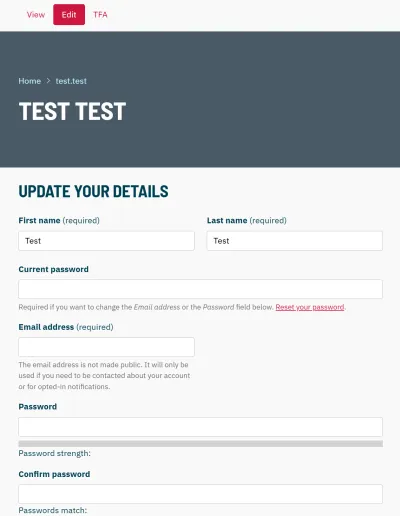
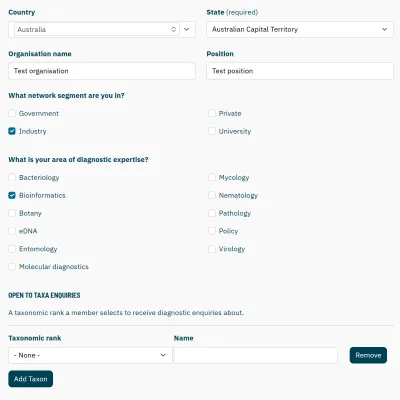
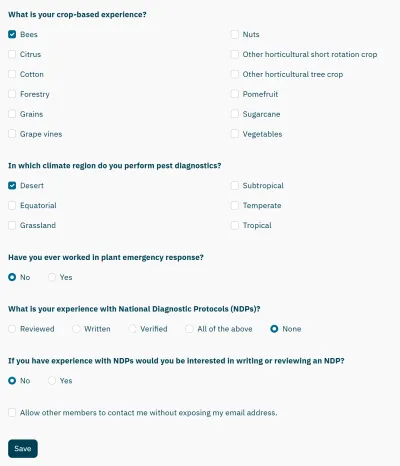
Note: Clicking the checkbox to allow other members to contact you is recommended, to facilitate networking. If you do not check this box, other NPBDN members will not be able to easily contact you.
Set Up Two-Factor Authentication (TFA)
To log in to the NPBDN website you must set up TFA. There are three options for using TFA. You can choose to set up one or more TFA methods.
- Receive authentication codes via email for each login attempt
- Use one-time codes (usually only used for account recovery)
- Receive authentication codes via an authentication app for each login attempt (eg Authenticator)
Set up steps
- To set up TFA, log in to your member account, go to My Account and click TFA.
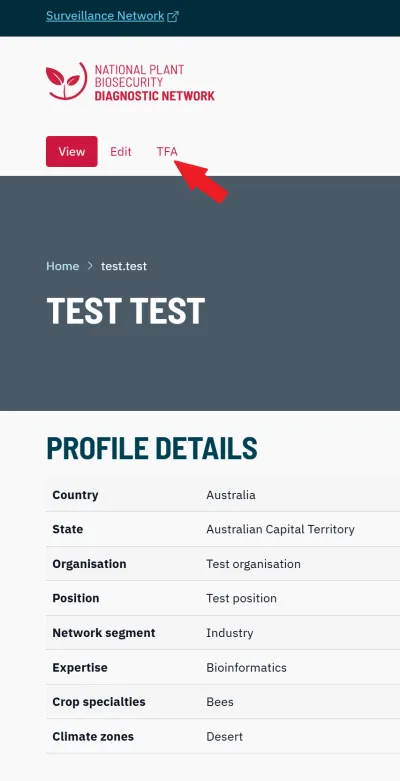
- Select to either:
- Email codes
- Generate codes (list of recovery codes)
- Set up an authentication app
Note: You can set up multiple authentication methods. Each option will require you to re-enter your password.
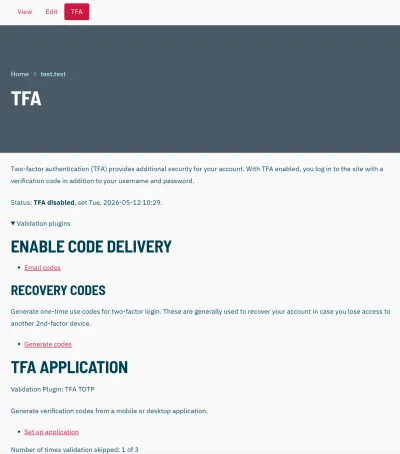
Set up TFA Email Codes
- Log in to your member account, go to My Account and click TFA.
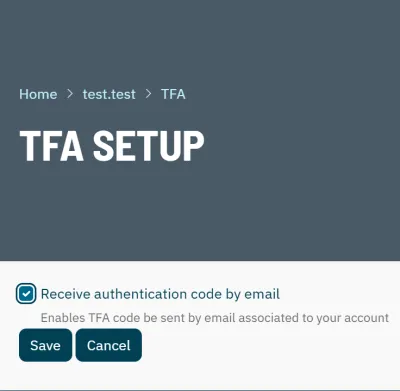
- On the TFA screen, select “Email Codes”. Enter your password. Make sure the checkbox is ticked to “Receive authentication code by email”.
- Click Save.
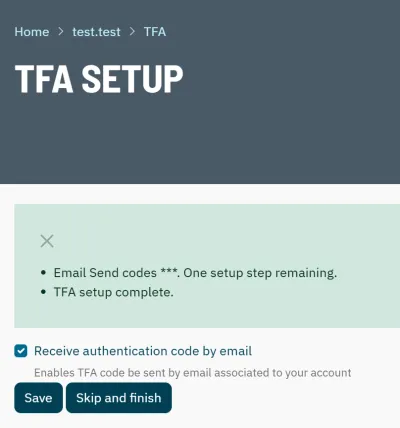
- Click “Save” again on the next screen– do NOT click “Skip and finish”
Set up TFA one-time (recovery) codes
- Log in to your member account, go to My Account and click TFA.
- On the TFA screen, select “Generate Codes”. Enter your password.
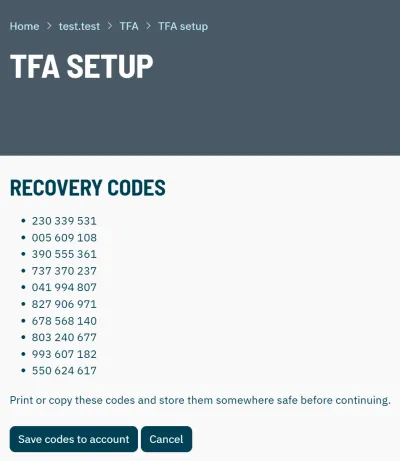
- Print or copy and save the generated codes.
- Click “Save codes to account”
Set up an authentication app
- Log in to your member account, go to My Account and click TFA.
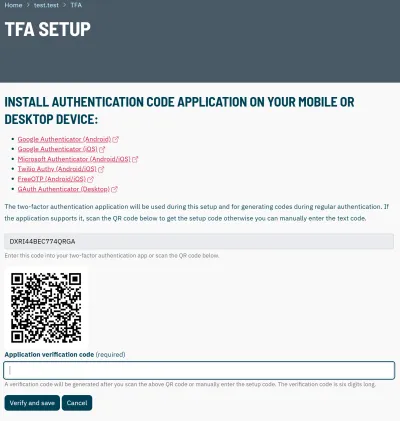
- On the TFA screen, select “Set up application”. Enter your password.
- Click “Set up authentication”
- This method requires you to already have an authentication application or to install one. If you do not already have an authentication application listed on the screen, click the link to your chosen app to download the app.
- Once you have one of the selected apps installed, follow the steps within your app to add a new account. Either use the provided code or the QR code on the TFA Setup screen on the NPBDN website to add the NPBDN website to your authentication app.
- Once the NPBDN website is set up as a new account in your app, enter the verification code generated by the app into the “Application verification code” field and click “Verify and save”.
If you have followed this guide and are still unable to access your account, edit your member details or set up at least one TFA method, contact us for assistance.